unpakt
Install any Linux app for your user: AppImages, tarballs, and .deb, .rpm
or pacman packages. For your user by default, with no root and no vendor
install scripts, and a one-step rollback when an update breaks something.



unpakt add https://github.com/obsidianmd/obsidian-releases
That one command finds the latest release, picks the file that fits your
machine, adds the app to your applications menu and puts an obsidian command
on your PATH. Later, unpakt update gets the new version and
unpakt rollback obsidian takes you back if it misbehaves. Use it from the
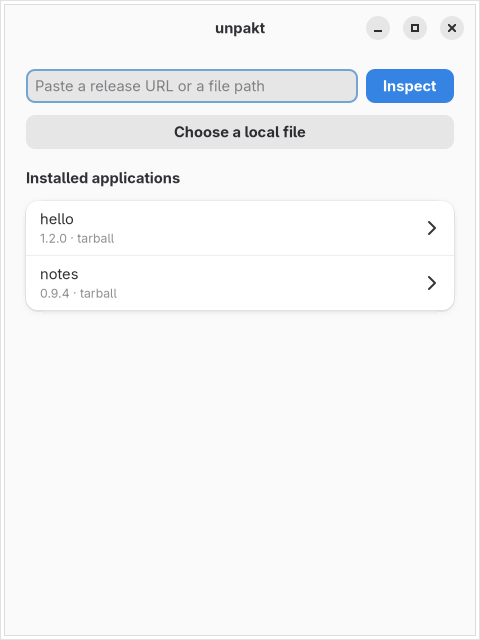
terminal (unpakt) or from the GTK 4 / libadwaita app (unpakt-gui).
Why unpakt
- The app only ships a
.deb, and you're on Fedora or Arch. unpakt unpacks.deb,.rpmand pacman packages into your home directory, on any distribution, and tells you first whether the app is expected to run there. - You'd rather not run a vendor's install scripts as root. unpakt never asks for root and never runs a package's install scripts. It reads them, and tells you if they would have set up accounts, services or kernel modules. The one exception is a package for your own distribution's family, where you can let your package manager install it instead; see Native installs.
- Your AppImages live in
~/Downloads, with no menu entry and no updates. unpakt gives each app a launcher entry with its icon, a command, and updates when you ask for them. - An update broke your app. The last three versions stay on disk, so
unpakt rollbackis instant. - Installs that can't leave a mess. Every install, update and removal is a transaction: Ctrl-C, an error or a power cut is undone on the next run.
See before you install
unpakt inspect looks inside a file without running anything or changing your
system. Here it is on Obsidian's .deb, on an Arch machine:
$ unpakt inspect ~/Downloads/obsidian_1.14.5_amd64.deb
name:    Obsidian
version: 1.14.5
id:      obsidian
source:  ~/Downloads/obsidian_1.14.5_amd64.deb
asset:   obsidian_1.14.5_amd64.deb
format:  deb -> extract
entry:   opt/Obsidian/obsidian
  other: opt/Obsidian/obsidian-cli
  other: opt/Obsidian/chrome-sandbox
  other: opt/Obsidian/chrome_crashpad_handler
command: obsidian
desktop: yes
Compatibility: ok
  note: postinst would set the setuid bit (chmod 4755 '/opt/Obsidian/chrome-sandbox' || true); it is not set
  note: postinst was not run; first unrecognized line: if type update-alternatives >/dev/null 2>&1; then
  note: postrm was not run; first unrecognized line: if type update-alternatives >/dev/null 2>&1; then
The compatibility check looked for missing libraries,
paths that won't exist outside /opt, system services and risky install
scripts. It found nothing that stops Obsidian from running here, and it lists
what the install scripts would have done.
What it installs
| Format | From | How |
|---|---|---|
| AppImage | file, URL, GitHub release | Run in place, or extracted where FUSE 2 is missing |
Tarball (.tar.gz, .tar.xz, .tar.zst, …) |
file, URL, GitHub release | Unpacked; the program and icon are found for you |
.deb, .rpm, pacman (.pkg.tar.zst) |
file, URL, GitHub release | Unpacked into your home after the compatibility check, scripts never run; or, for a .deb or .rpm of your distribution's own family, installed system-wide through PackageKit after you agree (see Native installs); pacman packages are always unpacked |
Given a GitHub repository, unpakt prefers an AppImage, then a tarball, then a
package for your distribution. --format picks one explicitly.
Features
- Launcher entry with the app's own icon, and a command in
~/.local/bin. inspectshows what an install would do before anything is changed.updatefetches the latest release and keeps the format you installed;rollbackgoes back one version (the last three versions are kept).- Transactional installs, updates and removals, with crash recovery.
- Per user by default: no root, nothing written outside your home directory.
System-wide installs only happen for a
.debor.rpmof your distribution's own family, through PackageKit, and only after you agree. doctorchecks the installation for problems.- Shell completion for bash, zsh and fish (and elvish, PowerShell).
- A desktop app with the same install, update, rollback and remove actions, including the compatibility verdict and its confirmations, and a consent dialog for native installs with an "Install for me only" choice.
Install
One command for any distribution (x86_64):
curl -fsSL https://raw.githubusercontent.com/krotrn/unpakt/main/get.sh | sh
It picks the package for your system: the pacman repository on Arch and its
derivatives, the release .deb on Debian 13+ / Ubuntu 24.04+ and theirs, and
the AppImage (with unpakt and unpakt-gui commands and a launcher entry, in
~/.local) everywhere else. Without a graphical session, or where the desktop
app can't run (glibc older than 2.39, musl), it installs only the static
command-line binary into ~/.local/bin. Every download is checked against the
release's SHA256SUMS. Run it again to update. Options go after sh -s --,
e.g. curl -fsSL … | sh -s -- --cli-only: --cli-only, --gui (desktop app
even without a graphical session), --source (build from source, see
From source), --dry-run (show what it would run).
Or install it yourself. Every release is on the
releases page; the commands below
use the version in v, so set it to the release you want.
v=0.1.0
Arch Linux and derivatives
sudo tee -a /etc/pacman.conf >/dev/null <<'CONF'

[unpakt]
SigLevel = Optional TrustAll
Server = https://github.com/krotrn/unpakt/releases/download/arch-repo
CONF
sudo pacman -Sy unpakt          # or, once it is on the AUR: yay -S unpakt
sudo pacman -S --needed fuse2   # optional: run AppImages without extracting them
SigLevel = Optional TrustAll is for an unsigned repository. Once the
repository is signed, import its key and use the default SigLevel.
Debian / Ubuntu
Ubuntu 24.04 or newer, Debian 13 or newer.
curl -fLO "https://github.com/krotrn/unpakt/releases/download/v$v/unpakt_${v}-1_amd64.deb"
sudo apt install "./unpakt_${v}-1_amd64.deb"
There is no apt repository yet: to update, install the newer .deb the same way.
AppImage (any distribution, GUI and command line)
curl -fLO "https://github.com/krotrn/unpakt/releases/download/v$v/unpakt-$v-x86_64.AppImage"
chmod +x "unpakt-$v-x86_64.AppImage"
./unpakt-$v-x86_64.AppImage              # the GUI
./unpakt-$v-x86_64.AppImage cli --help   # the command line
To get an unpakt command, link to the AppImage under that name:
ln -s "$PWD/unpakt-$v-x86_64.AppImage" ~/.local/bin/unpakt. Where FUSE
isn't available (containers, some minimal systems), add
--appimage-extract-and-run after the file name.
Command line only (any distribution)
A static binary with no dependencies:
curl -fLo unpakt "https://github.com/krotrn/unpakt/releases/download/v$v/unpakt-$v-x86_64-linux-musl"
install -Dm755 unpakt ~/.local/bin/unpakt
Or, once the crate is published on crates.io: cargo install unpakt-cli.
From source
Needs Rust 1.93 or newer and the GTK 4 (4.14+) and libadwaita (1.5+) development packages.
git clone https://github.com/krotrn/unpakt && cd unpakt
./install.sh                    # builds, then installs into /usr/local (asks for sudo)
PREFIX=~/.local ./install.sh    # or for your user only, without sudo
./install.sh --cli-only         # only the command line: no GTK packages needed
./install.sh --uninstall        # remove it again (use the same PREFIX)
install.sh installs the commands, the launcher entry, the icon and shell
completions. get.sh --source (curl -fsSL … | sh -s -- --source) installs
the build dependencies with your package manager and runs install.sh for the
latest release; it still needs Rust from https://rustup.rs.
Runtime requirements: the command line needs nothing extra. The GUI needs GTK 4.14+ and libadwaita 1.5+ (the packages and the AppImage bring them). FUSE 2 is optional and lets unpakt run AppImages without extracting them.
Upgrade
unpakt self update updates unpakt the same way it was installed (see
Updating or removing unpakt itself).
Or by hand: sudo pacman -Syu, the newer .deb, AppImage or binary, or
install.sh from a newer checkout. Installed apps and their records are kept.
Shell completion
The Arch and Debian/Ubuntu packages install completions for bash, zsh and
fish, and get.sh installs the bash and fish ones for your user. To install
them yourself, pick your shell (install -D creates the folder when it doesn't
exist yet):
unpakt completion bash | install -Dm644 /dev/stdin ~/.local/share/bash-completion/completions/unpakt
unpakt completion fish | install -Dm644 /dev/stdin ~/.config/fish/completions/unpakt.fish
unpakt completion zsh  | sudo install -Dm644 /dev/stdin /usr/local/share/zsh/site-functions/_unpakt
Then open a new terminal. zsh caches completions; if unpakt <Tab> still does
nothing, run rm -f ~/.zcompdump* and open another one. unpakt completion
also knows elvish and powershell.
Usage
Add an app from a GitHub repository. Give the full repository URL; unpakt installs the latest release and picks the asset that fits x86_64:
unpakt add https://github.com/owner/repo
From a download URL, or from a file you already have:
unpakt add https://example.com/downloads/App-1.2.3-x86_64.AppImage
unpakt add ~/Downloads/App-1.2.3-x86_64.AppImage
unpakt add ~/Downloads/app_1.2.3_amd64.deb
add shows what it is about to do and asks Install? [y/N]. Pass --yes to
skip the question (needed when there is no terminal). Useful options:
--id, --command (name of the command on PATH), --no-bin, --desktop /
--no-desktop, --entry (the executable inside a tarball), --pattern REGEX
(choose a release asset by name), --format appimage|tarball|deb|rpm|pacman
(only consider release assets of that format), --allow-risky (see
Compatibility check) and --force (replace files unpakt does not
own).
Look first, change nothing:
unpakt inspect https://github.com/owner/repo
See what is installed:
unpakt list          # one line per app
unpakt info <id>     # versions and every file unpakt created for the app
Update, roll back and remove:
unpakt update --check    # list available updates, install nothing
unpakt update            # update every app that has an update
unpakt update <id>       # update one app
unpakt rollback <id>     # switch back to the previous version
unpakt remove <id>       # remove the app and its files
update keeps the format an app was installed in: an app installed from a
.deb is updated from a .deb, even when the release also has an AppImage.
unpakt update also takes --allow-risky. Apps installed from a local file have no update source, so update skips
them. Check the installation:
unpakt doctor
-v shows more logging, -vv debug output (RUST_LOG overrides both):
unpakt -vv add https://github.com/owner/repo
Compatibility check
Packages are built for a distribution, not for your machine. Before a package is installed, unpakt streams through it, reads its metadata, scripts and ELF headers, and reports a verdict. This writes nothing to disk:
ok: the package is expected to run here. This is not a statement about whether the package is trustworthy; unpakt does not check who made it. Any notes (for example, that a file is setuid, which is fine where unprivileged user namespaces are available) are shown but do not change the verdict.risky: something may stop it from running, such as a library it needs that is missing, a hardcoded system path that will not exist, files that belong in system directories (services, udev rules, kernel modules), a setuid file or a script that sets the setuid bit when unprivileged user namespaces are unavailable, or an install script that sets up accounts, capabilities or kernel settings (useradd,setcap,sysctl,dkmsand the like).addandupdaterefuse a risky package with exit status 2. Pass--allow-risky(in the app: Install anyway or Update anyway) to install it anyway; the reasons you accepted are remembered for that app, and a later update stops again only when a new reason appears.needs-container: the package needs newer system libraries (for example glibc) than this machine has, which a per-user install cannot provide. There is no override.
unpakt inspect <file> prints the verdict without installing anything.
Install scripts (postinst, %post, .INSTALL) are never run. unpakt reads
them as text. Lines it does not recognise are shown as notes, and only
account, capability and kernel setup commands (useradd, setcap, sysctl,
modprobe, dkms and the like) make a package risky. A package that needs its
script to do something beyond that will not have had it done.
Some vendors ship a launcher script that looks for its files under
/usr/share/<app> or /opt/<app>. unpakt does not rewrite vendor files, so
such a package comes out risky with the path named. When the vendor also offers
a tarball, install that instead: Discord's deb is refused this way, while its
tar.gz works, because its launcher also looks next to itself.
Native installs
Where a package goes depends on its format and your system:
- An AppImage or tarball goes into your user directory.
- A
.debor.rpmof your own distribution's family, with PackageKit available, is installed system-wide through PackageKit after you agree. The package's install scripts run as root, so unpakt asks first. - A pacman package is always extracted into your user directory, because
PackageKit cannot install local pacman packages. unpakt prints the
sudo pacman -Ucommand so you can install it system-wide yourself. - Any other package goes into your user directory if the compatibility check passes, and is refused otherwise.
- On an image-based (immutable) system, or without PackageKit, a package of your own family is extracted into your user directory instead, and unpakt prints the command that installs it natively.
unpakt never runs apt, dnf, pacman, sudo or pkexec, and never sees
your password: PackageKit and polkit ask you themselves.
unpakt add ~/Downloads/app_1.2.3_amd64.deb             # asks, then installs system-wide
unpakt add --extract ~/Downloads/app_1.2.3_amd64.deb   # your user directory instead
unpakt update --yes                                    # install native updates without asking
unpakt remove --forget <id>                            # drop unpakt's record only
add --extractinstalls into your user directory even when the system package manager could install the package.add --yesskips the question; on a native install it also agrees to run the install scripts as root. Without--yesand without a terminal, the install is refused (exit status 2).updateasks for consent again for each native update;update --yesinstalls them without asking.remove --forgetonly drops unpakt's record of a system-wide app. The package stays installed.
Native apps differ from the ones in your home directory:
- There is no rollback. Remove them with your package manager;
unpakt removeasks the package manager through PackageKit. - An app keeps the route it was installed with. An app extracted into your user directory keeps updating that way, even after PackageKit is installed.
- If the system already has the same or a newer version, unpakt records it and skips the install.
- If the package was removed outside unpakt,
updaterefuses, andunpakt removeforgets the app.
Exit status is 2 when a command is refused (including missing consent) and 1 on an error.
Where files go
| What | Where |
|---|---|
| Installed apps | ~/.local/share/unpakt/apps/<id>/<version>/, with current pointing at the active one |
| Database | ~/.local/share/unpakt/db.sqlite |
| Launcher entries | ~/.local/share/applications/unpakt-<id>.desktop |
| Icons | ~/.local/share/icons/hicolor/ |
| Commands | ~/.local/bin/<command> |
| Downloads (temporary) | ~/.cache/unpakt/downloads/ |
Make sure ~/.local/bin is on your PATH; unpakt doctor tells you if it
is not. Set UNPAKT_ROOT to a directory to use it in place of your home
directory, for example to try unpakt without touching your real setup:
UNPAKT_ROOT=/tmp/try unpakt list
Updating or removing unpakt itself
unpakt self update updates unpakt the way it was installed: through the
package manager, as an AppImage, as the static binary, or with install.sh
(it rebuilds from the new release's source). unpakt self update --check only
checks for a newer version. unpakt self uninstall removes unpakt; add
--purge to also remove the apps it installed and unpakt's own data. Both ask
before running anything with sudo; --yes skips the question. For cargo
install, use cargo: cargo install --locked unpakt-cli or cargo uninstall
unpakt-cli.
Troubleshooting
An AppImage does not start, or doctor reports fuse2 as not found.
AppImages normally need FUSE 2 (libfuse.so.2). When unpakt does not find it,
it installs the app so that it runs with APPIMAGE_EXTRACT_AND_RUN=1, which
extracts the AppImage on each start instead. Installing the FUSE 2 package
(fuse2 on Arch, libfuse2t64 on Ubuntu 24.04) makes apps start faster. To run
an AppImage by hand without FUSE, use APPIMAGE_EXTRACT_AND_RUN=1 ./App.AppImage
or pass --appimage-extract-and-run.
The command is not found after installing. The command goes to
~/.local/bin, which must be on your PATH. Add it in your shell profile and
open a new terminal. unpakt doctor shows bin-in-path as [!!] when it is
missing.
conflict: ... would be shadowed by .... Another program of the same name
sits earlier on your PATH. Choose a different name with --command, skip the
command with --no-bin, or use --force. The GUI offers to install without the
command.
conflict: ... already exists and is not managed by unpakt. unpakt will not
overwrite files it did not create. Move the file away, or pass --force.
no release asset matches this host. The release has no AppImage,
tarball or package for x86_64 Linux (unpakt skips other systems and architectures,
checksums and signatures). The message lists the asset names it saw. If one of
them is right but scores lower than another, select it with --pattern:
unpakt add https://github.com/owner/repo --pattern 'x86_64.*\.AppImage$'
http error: ... status 403 from GitHub. Unauthenticated GitHub API
requests are rate limited. Set GITHUB_TOKEN (or GH_TOKEN) to a personal
access token; unpakt then sends it to the GitHub API, and never to download
URLs.
An install or update was interrupted (power loss, killed process). Nothing
to do: the next command that changes anything (add, update, rollback,
remove) first undoes the half-finished change, or finishes cleaning up after
one that had committed. If a recovery journal cannot be processed safely,
the command stops with cannot recover the unfinished operation recorded in
<file>, and unpakt doctor lists the file under journal. Look at the file,
fix or delete it, then retry.
waiting for another unpakt operation to finish.... Only one unpakt
changes things at a time (the CLI and the GUI share one lock). The command
waits and then continues. If nothing else is running, check for a stuck
unpakt process. The lock is released automatically when a process dies.
A package is refused as risky (exit status 2). Read the reasons that
add or inspect prints. If you accept them, run again with --allow-risky.
A needs-container package cannot be installed.
refusing to install without confirmation; pass --yes. add and remove
ask on the terminal; without one they refuse unless you pass --yes.
unsupported: .... unpakt installs AppImages, tarballs and deb, rpm and
pacman packages. A .zip or a bare executable is refused.
FAQ
Why per user, with no root? By default, installing into your home
directory needs no privileges, cannot break the system's packages, and lets each user have their
own apps. Everything unpakt writes is under ~/.local and ~/.cache.
Is installing a .deb with unpakt the same as apt install? It depends on
the route. On a Debian-family system with PackageKit, after you agree, unpakt
hands the package to PackageKit (see Native installs);
--extract opts out. Everywhere else (and always for pacman packages) unpakt unpacks
the package's files into your home directory, prints the command that installs
a package of your own family natively, rewrites its links to
point there, and never runs its install scripts or resolves its dependencies.
That suits self-contained apps, which is most vendor packages (VS Code, Slack,
Obsidian and the like). A package that needs a system service, a new user
account or a kernel module comes out risky and is refused unless you accept
it; one that needs newer system libraries than you have is refused outright.
Will a package built for another distribution work? Often, for
self-contained apps. unpakt inspect tells you before anything is installed:
it checks every library the program needs against your system.
Where are my apps stored? See Where files go.
unpakt info <id> lists every file created for one app.
Does unpakt verify the apps' signatures? No. It does not check checksums or signatures of the apps it installs yet; see Known limitations. Install apps from sources you trust.
Does it update apps in the background? No. Run unpakt update (or
unpakt update --check), or use the update action in the GUI.
How many versions are kept? The last three versions of each app. rollback
switches to the next older one.
What happens to my apps if I uninstall unpakt? Removing the package or the
binary leaves ~/.local/share/unpakt, the launchers and the commands in
place, so the installed apps keep starting. You just cannot update or remove
them with unpakt until you install it again. unpakt self uninstall --purge
removes the apps as well.
How does update know there is a new version? For a GitHub repo it
compares the latest release tag with the installed one. For a download URL it
compares the server's ETag or Last-Modified header. Apps installed from a
local file cannot be updated.
Compared with other tools
Short and incomplete; each tool has its strengths.
| Tool | What it is | How unpakt differs |
|---|---|---|
| AppImageLauncher | Integrates AppImages into the desktop when you open them | unpakt is a command-line-first installer with updates from GitHub releases and rollback; it also installs tarballs and packages |
| Gear Lever | GUI manager for AppImages | unpakt has a CLI as well as a GUI, and installs tarballs and packages |
| AM / appman | A large script-based catalogue of portable apps | unpakt has no catalogue: you point it at a repo, URL or file |
| eget, bin | Download a release binary from GitHub | unpakt also creates launcher entries and icons, keeps versions and can roll back |
dpkg -x, rpm2cpio, bsdtar by hand |
Unpack a package's files | unpakt also checks that the app can run, fixes its links and paths, adds a launcher and a command, and can update and roll back |
| distrobox | Runs another distribution in a container | unpakt unpacks the package straight into your home without a container, and tells you when an app does need one |
Contributing
Bug reports and patches are welcome. See CONTRIBUTING.md for setup and checks, and ARCHITECTURE.md for how the code is organised. Documentation: https://krotrn.github.io/unpakt/.
Verify a download
sha256sum -c SHA256SUMS --ignore-missing
gh attestation verify <file> -R krotrn/unpakt
minisign -Vm SHA256SUMS -P <key>   # when SHA256SUMS.minisig is published
This verifies unpakt's own release files, not the apps unpakt installs (see
Known limitations). The minisign public key will be
published with the release and in this README once signing is enabled; until
then a release has no SHA256SUMS.minisig.
Known limitations
- unpakt does not verify checksums or signatures of the apps it installs yet.
- unpakt does not check for updates in the background yet; run
unpakt update. - Packages extracted into your user directory are unpacked, not installed through your package manager: their dependencies are not installed and their install scripts never run. Apps that need either are flagged by the compatibility check. Native installs have no rollback.
- Some vendors ship a
.debthat is only a launcher looking for files under/usr/shareor/opt; use their tarball instead (see Compatibility check). - x86_64 only.
License
Licensed under either of Apache License, Version 2.0 or MIT license at your option.